

Box AI Studio is only available for Enterprise Advanced accounts.
Admin Enablement
Within the Admin Console, go to the Box AI section and then the Settings tab and set the permissions for both users and groups. If your organization has not fully enabled Box AI, you can select Enable for All to do so for all services.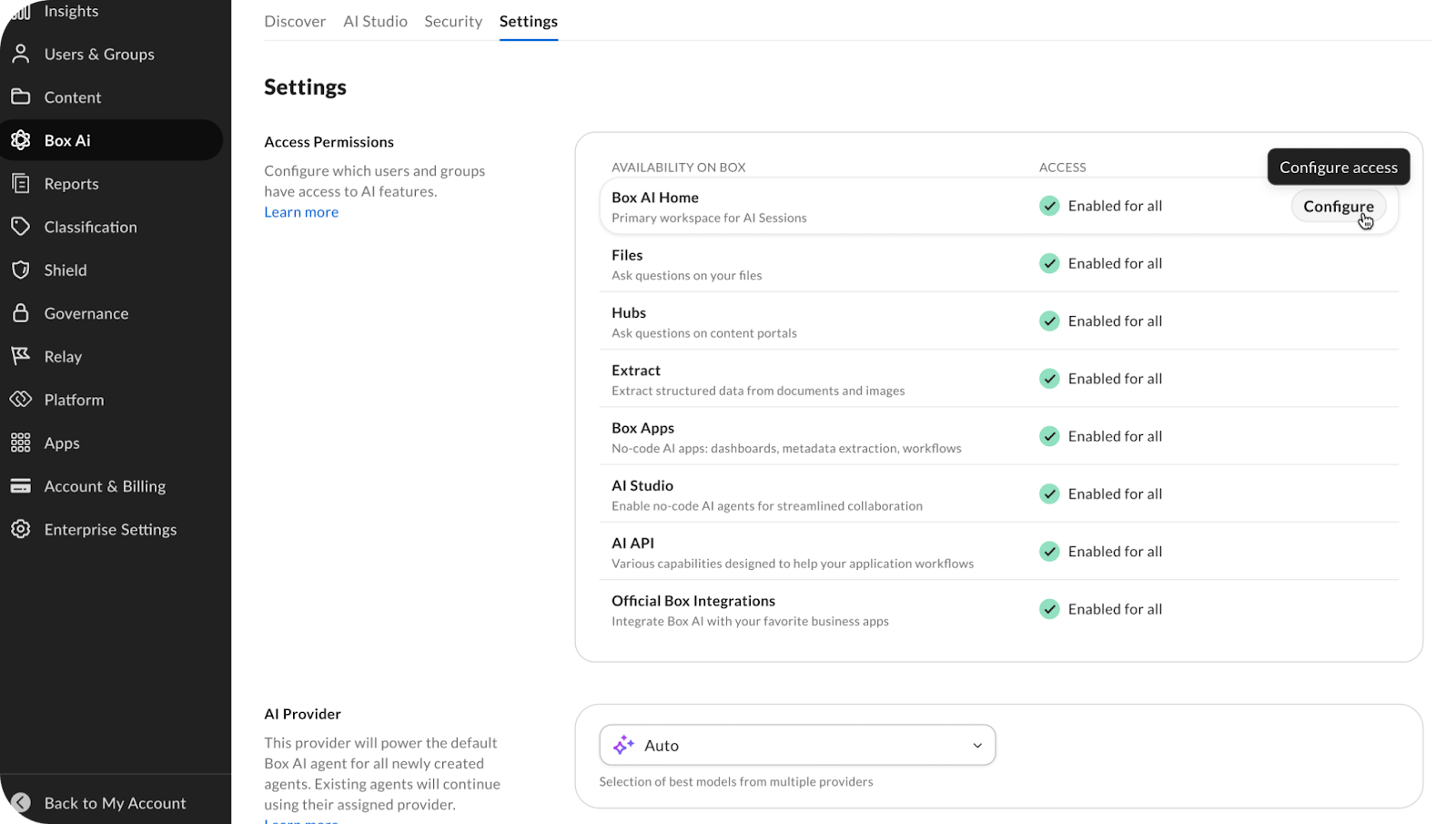
Enabling AI Settings
To enable Box AI Studio, first enable Box AI home:- Navigate to Box AI -> Settings.
- Select Configure on AI Home.
- Select Enable.
- After enabling AI Home, organizations that had AI Studio enabled with the legacy version will automatically have the new version of AI Studio enabled.
- After enabling AI Home, Admins cannot create new legacy agents. However, they can still modify existing legacy agents.
Upgrading Agents
When accessing legacy agents, you can upgrade the agent to begin using updated features. When configuring a legacy agent, select Upgrade Agent to create a new agent that mirrors the legacy agent.
- Agent name and appends “(new)” to it
- Description
- Custom instructions (if the legacy agent has both Q&A and Compose modes, only the Q&A custom instruction is copied; otherwise, the entire custom instruction is copied)
For new and upgraded agents, API usage is not supported.
Enabling Access for Co-Admins
To enable Box AI Studio for Co-Admins:- Go to the Admin Console -> then Users & Groups.
- Select View on the co-admin to configure.
- Select Edit on the Role and Access Permissions section.
- Toggle on for AI Studio.
Models tab in Box AI Settings page
The Models tab in the Box AI Settings is a catalog of all the models available for Box AI. The list displays the model name, provider, tier, whether it is available in Pro Mode, compliance badges (FRD, FRC, IL2, IL4), and query usage. As an admin, you can enable or disable models here by selecting the … button (More options menu) > Enable or Disable. You can also open Model Settings to set compliance requirements for FedRAMP or DoW.
Compliance support
Your organization is responsible for configuring AI models to meet your compliance requirements. Box establishes FedRAMP and related boundaries at the product and feature level. You choose which models stay available, and Box enforces that configuration. Visit Supported AI models - Box Dev Docs for a full list of models and providers.Security
Guardrails
Guardrails help protect your organization from unauthorized access to sensitive content by restricting agent actions based on your organization’s policies. To control the scope of an agent, you can define which content and users have restrictions. Guardrails set the operating boundaries for an agent, ensuring it only takes actions within the scope you’ve defined. For example, you can restrict an agent from adding external collaborators, so the agent behaves predictably regardless of how it’s triggered. To configure guardrails:- Open guardrails settings in the agent configuration.
- Select a section to modify:
- Create File
- Choose a scope:
- No restrictions: Apply to all matching content or users.
- Allow on specific items: Apply only to the items or users you select.
- Don’t allow on specific items: Apply broadly, except for the items or users you exclude.
- Select the folders, classifications, or users referenced by your selection.
- Save the agent configuration to apply your guardrail changes.
Guardrails don’t apply to session folders. If guardrails block the agent from saving a file to another folder, the agent saves the file in the session folder instead.
- Saving the configuration applies the guardrails to new agents only.
- When you open a new agent, the guardrails are applied to the agent, but you can modify them later.
As part of processing a query, Box can choose the best available model from the list of enabled models. The final generated answer always uses the user-selected model.
Compliance requirements
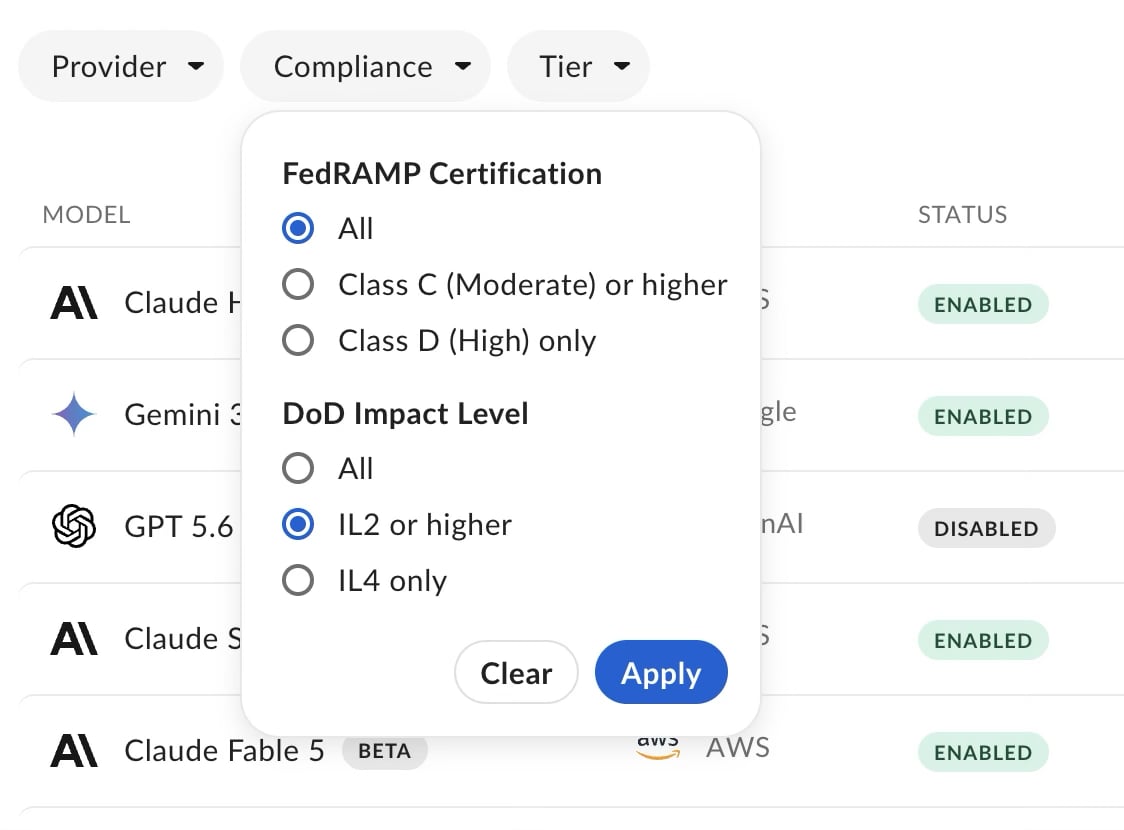
Set compliance requirements from Model Settings on the Models tab. Non-compliant models are disabled automatically, including newly added models. These controls apply to models that Box Agents use directly. Both requirements are off by default. Require FedRAMP certification- Go to Admin Console > Box AI > Models.
- Select Model Settings.
- Turn on Require FedRAMP certification.
- Select FedRAMP Class D (High) (FRD) or FedRAMP Class C (Moderate) (FRC). Class D is selected by default when you turn the toggle on.
- Select Save.
- Go to Admin Console > Box AI > Models.
- Select Model Settings.
- Turn on Require DoW compliance.
- Select DoW Impact Level 4 (IL4) or DoW Impact Level 2 (IL2). IL4 is selected by default when you turn the toggle on.
- Select Save.
- A banner on the Models page shows the requirement you set and how many non-compliant models were disabled.
- Non-compliant models are disabled and listed under an expandable row such as models hidden by compliance requirements. Expand that row to review them.
- If both FedRAMP and DoW requirements are on, only models that meet both stay enabled in the main list.
- New models without the matching compliance tag start disabled for your enterprise. Box enables them automatically after they are certified for that requirement.
- You can’t enable a model that’s hidden by a compliance requirement while the requirement is on.
- You can disable a model that meets the selected requirement from the model’s More options menu.
- You must keep at least one enabled model. To disable the last enabled model, enable another compliant model first.
Recommended setup for FedRAMP and DoW compliance
- Go to Admin Console > Box AI > Settings.
- Select Configure on AI Home.
- Enable AI Home only for yourself by selecting Enable for selected users and groups.
- Go to Box AI > Models.
- Select Model Settings, turn on Require FedRAMP certification, Require DoW compliance, or both, and select the levels your organization requires. Select Save.
- Review the Models list and any models hidden by compliance requirements. Disable any remaining models that your policies exclude, even if they carry a compliance badge.
Government customers who must abide by the DoW order regarding restricting use of Anthropic must manually disable all Anthropic models, even when compliance requirements are on.
When disabled models affect agents
Disabling a model, whether by a compliance requirement or manually, can change how agents behave. The agent’s selected model is disabled. The custom agent stops working. AI Studio shows a red warning icon in the agents list. Hover over the icon for a prompt to review the agent configuration. In AI Home, the agent is grayed out in the agent dropdown. Reconfigure the agent to use an enabled model. Pro Mode models are disabled for an agent that has Pro Mode on. The agent keeps working as long as at least one enabled model remains available for it. AI Studio shows a yellow warning icon in the agents list. Hover over the icon for a prompt to review the configuration. In AI Home, Pro Mode is grayed out for that agent, with a tooltip that Pro Mode is unavailable. Box Agent with Auto. If you disable a model that Auto requires, Box replaces Auto with the first available non-restricted model in the ranked list. If no model remains available for your enterprise, Box Agent is removed from the AI Home dropdown.Managing Custom Box Agents in Box AI Studio
To see a list of agents available, go to the AI Studio tab from the Box AI section in the Admin Console.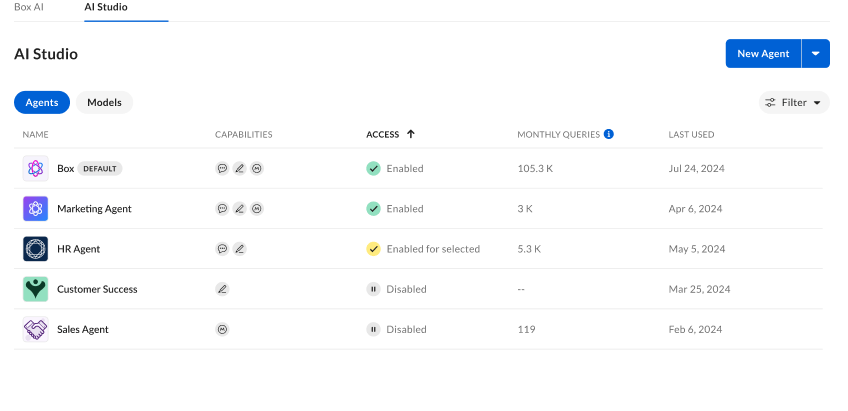
Managing Legacy Agents
From the legacy Agent view, you can see:- Name
- Capabilities
- Content Q&A
- Text Generation
- Access
- Enabled
- Enabled for selected
- Disabled
- Monthly Queries
- Last Used
- Type
- Content Q&A
- Text Generation
- Access
- Enabled
- Enabled for selected
- Disabled
- Edit
- Access
- Delete
- Deleting an agent cannot be undone.
Managing Agents
To see a list of agents available, go to the AI Studio tab from the Box AI section in the Admin Console. From the Agent view, you can see:- Name
- Access
- Created By
- Monthly Queries
- Last Used
- Access
- Enabled
- Enabled for selected
- Disabled
- Edit
- Duplicate
- Delete
- Deleting an agent cannot be undone.