

Supported Operating Systems
Two latest version of macOS. Windows & Windows Server - The two latest major versions (64-bit)Working in Finder
If you use a Mac, you can access Box Drive by opening Finder. In the sidebar, navigate to Devices > Location > Box. Open this folder to display all of the contents of your Files page on Box.com. You can navigate through any folder and open every file you see just as if it were a local file. Box Drive icons tell you at a glance the status of your files and folders. For each file in the Box folder, Box Drive displays these standard properties:- File name
- File size
- File type
- Date created (more information on Box timestamps)
- Date modified (more information on Box timestamps)
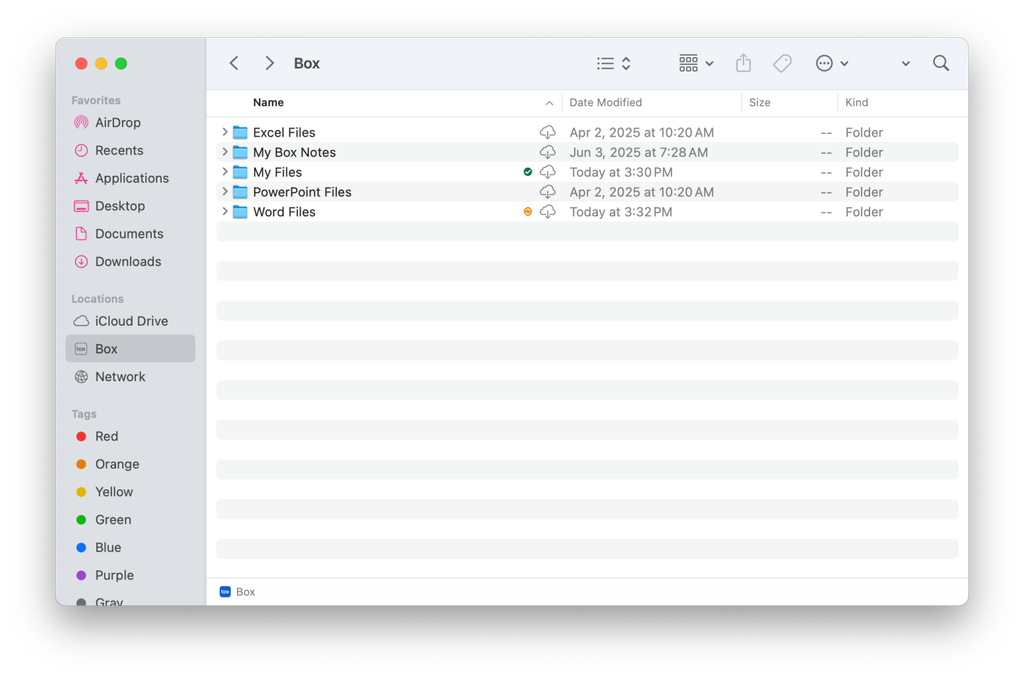
Items (files or folders) dragged and dropped from your local drive into Box are moved instead of copied. Similarly, items dragged and dropped from the Box folder to your local drive are moved instead of copied and hence deleted from Box.
Working in Explorer
If you use Windows, you can access Box Drive by opening Explorer and navigating to the folder named Box. Open this folder to display all of the contents of your Files page on Box.com. You can navigate through any folder and open every file you see just as if it were a local file. For each file in the Box folder, Box Drive displays these standard properties:- File name
- File size
- File type
- Date created (more information on Box timestamps)
- Date modified (more information on Box timestamps)

- Share
- Send to Box Sign
- Refresh file
If you are currently using Box Sync, it’s important to uninstall Box Sync before you install Box Drive.
Logging in to Box Drive
You can use the Box Drive app to access and edit all your Box files from your desktop.- Download Box Drive and open it.
- Click Log In if you already have a Box account.
If your admin enabled Single Sign On (SSO), the log in window asks you to choose an account you want to use for logging in.
Working with Other Applications
Working with Box files in other applications such as Word or Excel is seamless. Open the file from Box Drive and work with it as you usually would. When you’re done, save the file. The file automatically syncs back to Box. You can also use Save As to save the file to a new location, save the file with a new name, or create new folders to store your file. All of those changes save automatically in Box. You can also use Save As to easily save new local files into Box Drive. To do this, select the Box location and browse to find the folder you want to contain your file.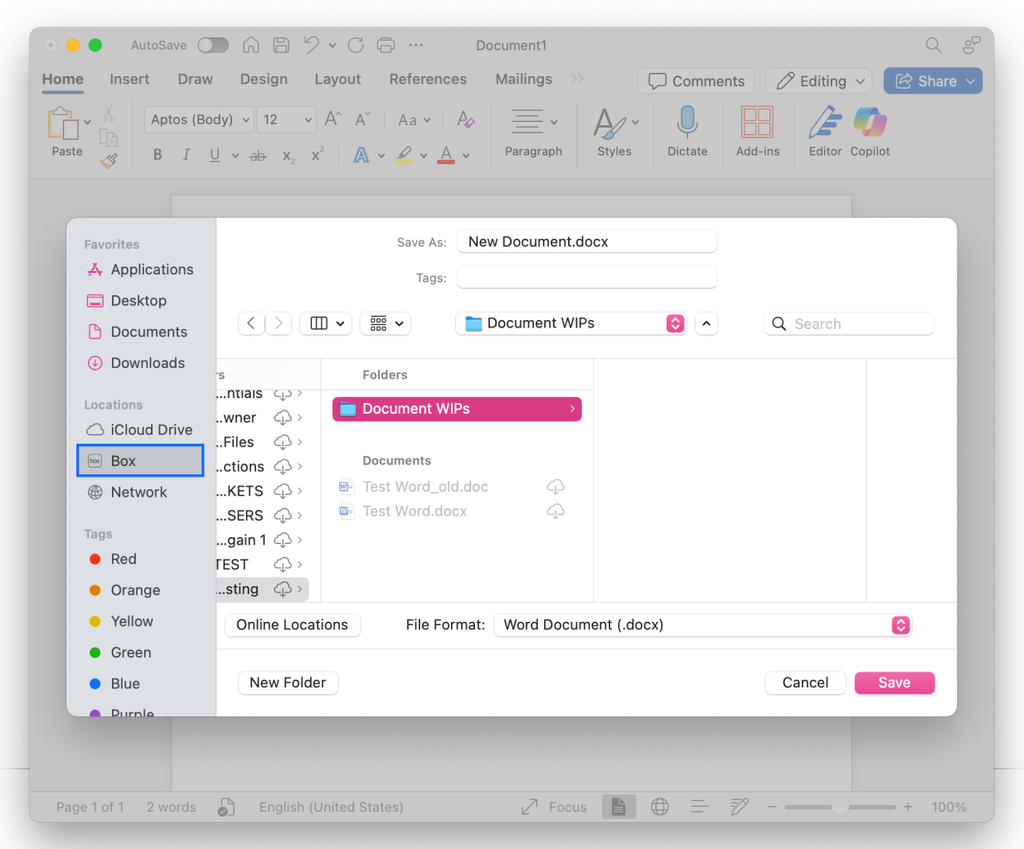
Box Drive Icons and File or Folder Status
Box Drive icons tell you at a glance the status of your files and folders.Icons in Windows
 | Item is up-to-date in Box and available online only. |
|---|---|
 | Item is problematic. For more information on problem items and how to resolve them, see Problem Item Notifications. |
 | Item is in the process of being saved to Box. |
 | Item is locked. |
 | Item is marked for offline access. |
 | Item is marked available offline and online |
 | Item is open in an active co-authoring session. |
Any icons not included in this list are unrelated to Box Drive, and are provided by the file’s parent application, not by Box Drive. An example of an icon unrelated to Box Drive is Excel Spreadsheet’s macros icon.
Icons in Mac
| No icon | Item is up-to-date in Box. |
|---|---|
 | Item is not downloaded to the device’s hard drive. You do not need to click this item to open files or folders with Box Drive. You can select files and folders by clicking this item, or open them by double-clicking on this item. When you double-click on the item, Box downloads the item and displays its contents in the default application you’ve chosen for the file type. |
 | Item is not saved to Box. |
 | Item is being downloaded to the device’s hard-drive, or is being saved to Box. |
 | Download is in progress. |
 | Item is a problem item. For more information on problem items and how to resolve them, see Problem Item Notifications. |
 | Item is being saved to Box. |
| Item is locked. |
 | Item is marked for offline access. |
| Item is open in an active co-authoring session. |
Marking Content for Offline Use
You can also mark content in Box Drive to make it available offline. Drive downloads this content to your device’s hard drive so you can work when you’re not connected to the Internet. When you get back online, Drive automatically uploads the revised content, so you are always working with the most up-to-date versions of your files. More information about making content available offline.You cannot make G Suite files (Google Docs, Sheets, and Slides) and Box Notes available to work offline. These are all online-only formats.
Searching Box Drive
As with the Web, searching is the fastest way to locate your content. You can search either through Box Drive entirely, or through a specific Box Drive folder. Searching through a specific folder can be a more efficient way to find the content you’re seeking. It also gives you more granular search capabilities.Searching on a Mac
To begin searching on a Mac, in your menu bar, click the Box icon to open the Box Drive search interface.-
- Alternatively, use the keyboard shortcut Ctrl + Option + Cmd + Space.

- To search throughout Box Drive, type in your search term(s). Results display as you type.
- To display a result, double-click on it.
- To get more information about a result, right-click on it.
- To search within a specific Box Drive folder:
- At the bottom left, click the Search inside a Folder icon (). The Browse for Folder window opens.
- Click the folder you want. Then click OK.
- Type in your search terms. Results display as you type.

Searching on Windows
To begin searching on Windows, in your menu bar, click the Box icon to open the Box Drive search interface.- Alternatively, use the keyboard shortcut Ctrl + Shift + Alt + B.

- Search throughout Box Drive. To do this, type in your search term(s). Results display as you type.
- To display a result, double-click on it.
- To get more information about a result, right-click on it.
- Search within a specific Box Drive folder. To do this:
- At the top right, click the Search inside a Folder icon (). The Browse for Folder window opens.
- Click the folder you want. Then click OK.
- Type in your search terms. Results display as you type.

For both Windows and Mac machines, if you recently added a new file or folder to Box, it may take a few minutes to see the item in your results after the upload finishes.
Logging Out of Box Drive
Logging out completely removes all traces of your Drive usage from your machine and enables you to log in again as a new user. Also, when you log out, your Box Drive session ends and the login screen displays. In addition, logging out of Box Drive deletes all of the downloaded content you had marked for offline availability. This of course clears up hard disk space on your device. It also returns to an online-only state all of the content you have marked for offline availability. You will have to repeat the process of marking folders for offline availability.To log out on a Mac:
- Navigate to the search menu by going to the menu bar and clicking the Box icon.
*
- Alternatively, you can use the keyboard shortcut Ctrl + Option + Cmd + space.
- Click the gear icon, and from the list that displays click Log Out.
- Open Files - You can save and close these files to prevent the loss of any work.
- Items Uploading - You can wait for these to upload to Box. Box Drive cancels any uploads that do not complete before you log out.
- Problem Items - These are local files or folders that cannot be synced back to Box. Logging out deletes these items. To view these items, navigate to the Search Menu, click the gear icon, and from the list that displays click Error Updating an Item….
To log out on Windows
- Navigate to the search menu by going to the system tray and clicking the Box icon.
*
- Alternatively you can use the keyboard shortcut Ctrl + Alt + Shift + B.
- Click the gear icon, and from the list that displays click Log Out.
- Open Files - You can save and close these files to prevent the loss of any work.
- Items Uploading - You can wait for these to upload to Box. Box Drive cancels any uploads that do not complete before you log out.
- Problem Items - These are local files or folders that cannot be synced back to Box. Logging out deletes these items. To view these items, navigate to the Search Menu, click the gear icon, and from the list that displays click Error Updating an Item….
Manually Resetting Box Drive
In rare cases Box Drive fails to start or keeps asking for a reset. A reset signs you out and removes Box Drive’s local data and settings. Files that have not uploaded to Box yet stay in a folder on your Desktop. If you can, update Box Drive to version 2.55.140 or later before you reset. Earlier versions can fail to complete a reset on some devices.Reset Box Drive on Windows
Step 1: Use the built-in reset if Box Drive offers it
If Box Drive shows Box Drive needs reset, save and close any files you have open from your Box folder, then select Reset. Files that have not uploaded yet move to a folder on your Desktop named Box (YYYY-MM-DD HH-MM). After Box Drive restarts, sign in and copy those files back into your Box folder. If you don’t see this prompt, or it keeps coming back, continue with Step 2.Step 2: Check which architecture your Box Drive uses
Box Drive for Windows runs on either the new architecture or the previous architecture. Which one you have depends on your organization’s rollout, not on the Box Drive version number. The reset steps are different, and using the wrong steps can delete files that have not uploaded or stop Box Drive from starting. Open your Box folder in File Explorer and check:
Not sure? Contact your IT admin or Box Support before you continue.
New architecture: reset Box Drive
- Save and close all files you have open from your Box folder. Also close any app that might be scanning or using files in your Box folder, such as backup, indexing, or document-management tools.
- Sign in to Windows as the user whose Box Drive you’re resetting. Open Command Prompt normally (don’t select Run as administrator).
- Run
"C:\Program Files\Box\Box\FS\cf\cfctl.exe" drive reset Box. This stops Box Drive, moves files that have not uploaded to a folder on your Desktop named Box (YYYY-MM-DD HH-MM), and removes Box Drive’s local data and settings. - Wait for the message Box Drive reset completed successfully. If you see Box Drive reset completed with error, a file in your Box folder is usually still open or locked by another app. Close that app, or restart Windows, then run the command again. Don’t continue until you see the success message.
-
If the reset fails while backing up files that have not uploaded to Box, an administrator can rerun the command with
--skip-backup-unsynced-data:"C:\Program Files\Box\Box\FS\cf\cfctl.exe" drive reset Box --skip-backup-unsynced-data
-
If the reset fails while backing up files that have not uploaded to Box, an administrator can rerun the command with
- Start Box Drive and sign in. Copy any files from the Box (YYYY-MM-DD HH-MM) folder on your Desktop back into your Box folder.
Previous architecture: reset Box Drive
Use these steps only if your Box Drive uses the previous architecture (see Step 2).- Quit Box Drive. If needed, use Task Manager to end the Box.exe process.
- Check whether any files exist in
C:\Users\USERNAME\AppData\Local\Box\Box\unsyncedFiles. These files have not uploaded to Box. To keep them, copy them to a location outsideC:\Users\USERNAME\AppData\Local\Box\Box(such as your Desktop). The next steps delete them. You may need to show hidden folders to see AppData. - Delete the folder
C:\Users\USERNAME\AppData\Local\Box\Box. - In Registry Editor, delete the key
HKEY_CURRENT_USER\Software\Box\Box. - Start Box Drive and sign in.
To manually reset Box Drive on a Mac
- Quit Box Drive if it is running.
- Download and open the Box Reset Tool zip file.
- Open the Box Reset Tool from the Downloads folder.
-
Click Reset.
- You should see a prompt stating “Box Drive reset successfully”.
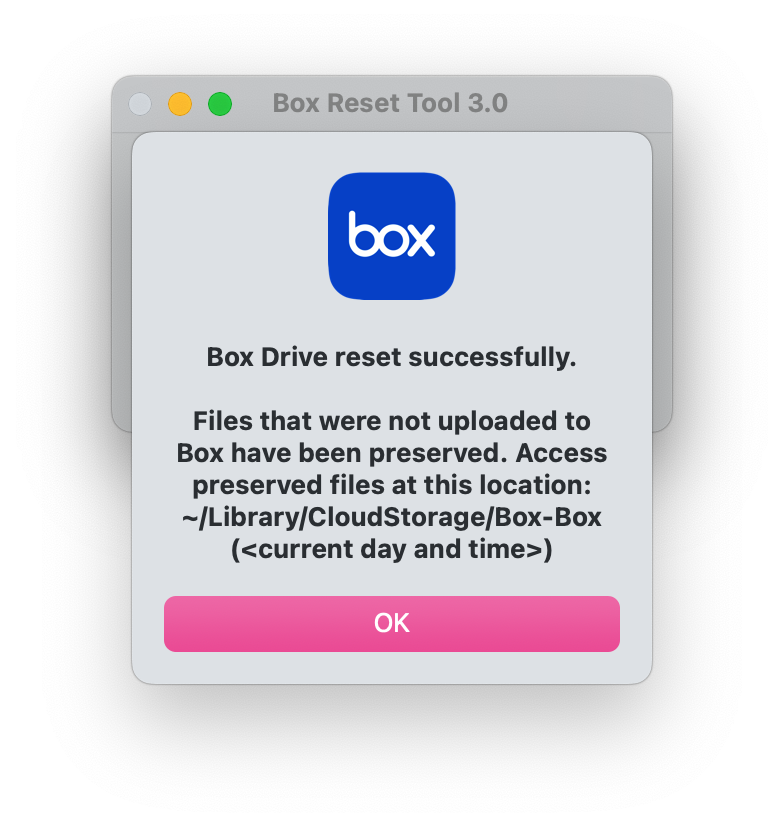
- Open Box from your application folder and log back in.
The Box Reset Tool will write logs of actions performed to your Desktop folder under “Box-ResetTool-logs_(<currentday>)”.
Quitting Box Drive
Exiting Box Drive does not remove any locally stored Box Files from your computer and it does not log you out. If when you exit there are changes in the midst of being saved, the next time you open Box Drive it picks up right where it left off and finishes saving these changes.To Quit Box Drive on a Mac
- Click the Box icon from the top menu bar.
- Alternatively, use the keyboard shortcut Ctrl + Option + Cmd + space.
- Click the gear icon, then select Quit.
- Follow the prompts to close any open files and quit Box Drive.
To Quit Box Drive on Windows
- From the task bar, open the system tray in the lower right corner and click the Box icon.
- Alternatively, you could use the keyboard shortcut Ctrl + Alt + Shift + B.
- Click the gear icon, and select Exit.
- Follow the prompts to close any open files and quit Box Drive.