

Annotating a Box Note
- Select to highlight the text you want to annotate.
- Select the annotation icon.
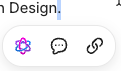
- Enter your feedback.
- Select the button arrow icon to post.
Only collaborators with editor or co-owner access can annotate a Box note.
- Hover over the existing annotation
- Select Reply.
- In the top right, select the Comment icon to open the Comments sidebar.
- Enter your comment
- Select Post.
- Edit a comment after posting it (only editing your own comments is possible).
- Copy a link to a specific comment and share it with someone (so entering such a link will immediately scroll to proper comment).
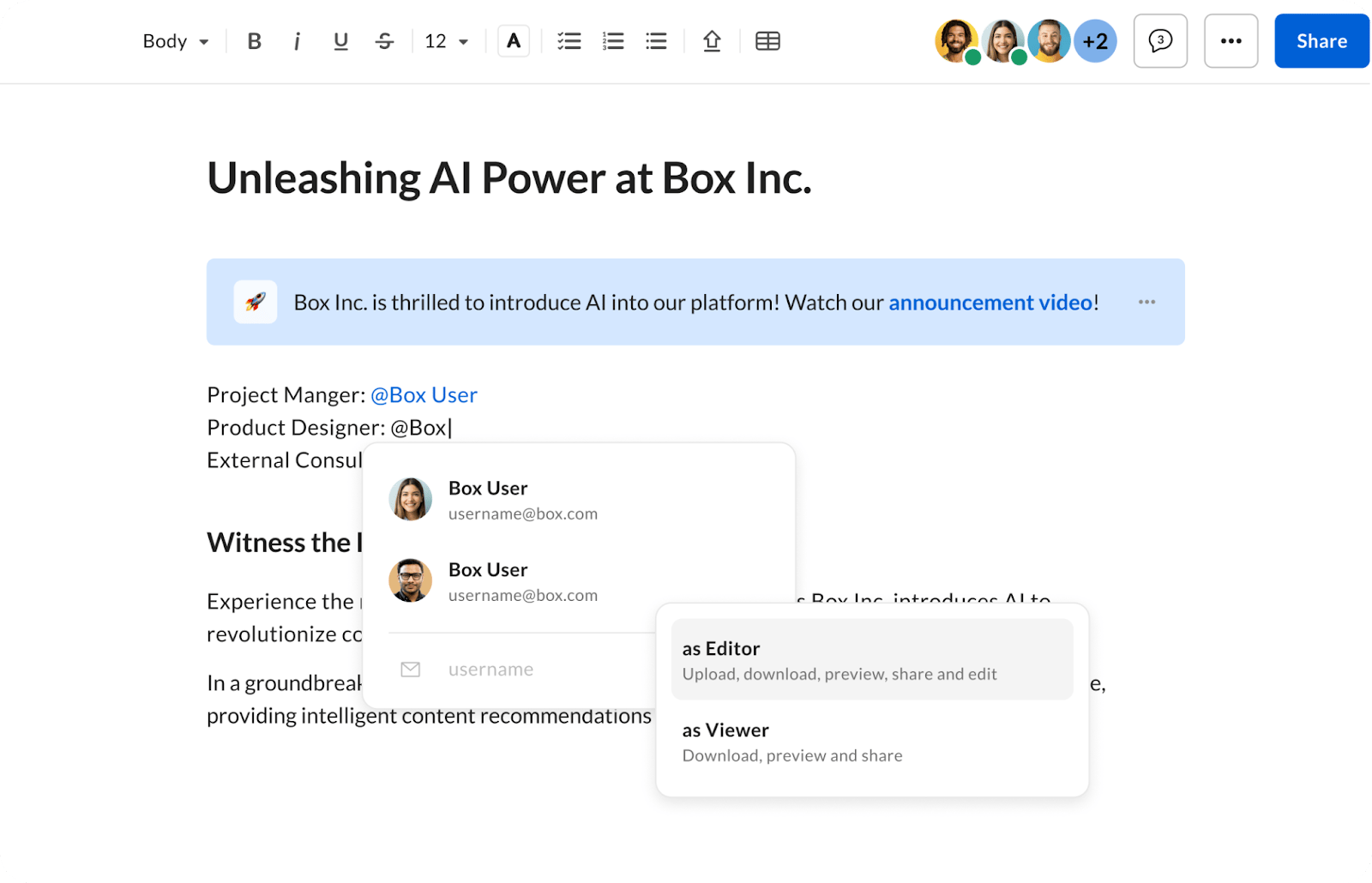
- Type the @ symbol, followed by the name or email of the people you want to tag.
- Depending if the user is internal or external, you can: a. Invite b. Share a link
- Select permission level a. Editor b. Viewer Once selected, the user you added will have access to the Box note and be sent an email notification, depending on that user’s permission settings.
To receive notifications when a file has been annotated or commented upon, you must enable your notification settings for comments for either In Items I Own or In Items I’ve Joined. More information on folder settings.
Replying to annotations
You can add a reply to an existing annotation. Nested replies—a reply to a reply and so on—are not supported. To reply to an annotation:- In the Comments panel, select the annotation, or select the highlighted commented text in the Note.
- Select Reply.
- In the Write a reply… field, enter your response.
- Select Post.
Formatting text in a comment or annotation
You can apply basic formatting to make feedback clearer and easier to scan. Rich text, such as numbered or bulleted lists, is supported in comments, annotations, and their replies. To format text as you write:- In the Comments panel, select the field where you’re writing a comment, annotation, or reply.
- Enter your text, then select the text you want to format.
- In the formatting toolbar, select Bold or Italic.
Notifications
When you @mention someone within an annotation, Box sends an email and a Box notification to that person. The email and Box notification contain a link to the annotation on the board, where threaded replies are displayed.Editing an annotation
You can edit replies you own at any time. When you edit an annotation, Box adds the Edited label to the annotation. The email and Box notification contain a link to the annotation on the board, where threaded replies are displayed. To edit an annotation:- Adjacent to the annotation, select the ellipsis (…) button.
- Select Edit.
- Enter and edit the annotation.
- Select Save.
Deleting an annotation
You can delete annotations you own at any time. When you delete the top level annotation or global comment, the replies attached with it are deleted. To delete an annotation you own:- Adjacent to the annotation, select the ellipsis (…) button.
- Select Delete.
- Confirm the deletion by selecting Delete.
Resolving an annotation
Annotations are in either an Unresolved or Resolved status, and can be resolved by anyone. Resolved annotations can be reverted back to Unresolved status. Individual replies within an annotation cannot be resolved. To resolve an annotation:- Adjacent to the annotation, select the checkmark icon.
- Box displays the Resolved badge in the annotation.
- Adjacent to the annotation, select the checkmark icon.
- Box removes the Resolved badge in the annotation.
Filtering annotations
You can filter annotations, and their threaded replies, based on:- All
- Unresolved/Resolved
- Mention Me
To receive notifications when a file has been annotated or commented upon, you must enable your notification settings for comments for either “In Items I Own” or “In Items I’ve Joined”. More information on folder settings.